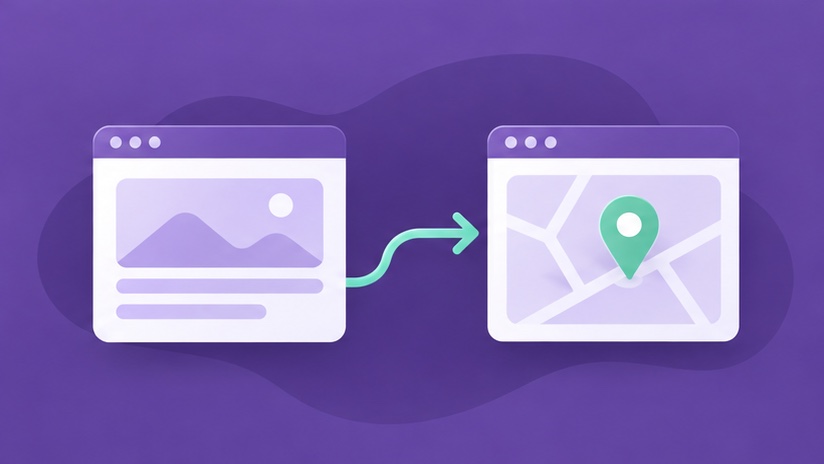
Changing a local business website can break links customers saved in Google Maps, directories, emails, or bookmarks. A good redirect sends them from the old address to the current page that answers the same question. Start with the links that help people call, find directions, book, or request a quote.
List the destinations customers use away from your site
Open the public Google Business Profile and check the website, appointment, and other links your business has added. Review listings you control, social profiles, email signatures, and campaign landing pages. Check older messages or printed materials with a web address that customers may still use.
Record the current destination, where it appears, and what the visitor expects to find. A directions link has a different purpose from a quote link. If a San Diego business has separate staffed locations, confirm that the address, hours, and destination still match each location.
Map old links to the closest useful new pages
If the old URL explains a specific service, redirect it to the replacement for that service. If the destination gave instructions for one office, route visitors to the corresponding location page. A generic homepage may leave people searching for information they expected to find right away. Ask a teammate who handles inquiries to review any mapping you cannot explain easily.
Use a permanent redirect when the move is permanent and the platform supports it. Test the old address as a visitor and confirm it arrives at the intended page in one step where possible. Google explains redirects and destination mapping in its site move guide.
Update the original links you control
A redirect is useful for links you cannot immediately change. Update the website and appointment destinations directly in the profiles, directories, and materials your team manages. This keeps customers closer to the final page and makes it easier to verify what the listing is telling them.
Check any destination that staff send frequently, such as a booking link in an email template. Ask the team to try it on a phone and confirm the action still works. A new route can load correctly while pointing to the wrong calendar or form. Document which links were updated and which ones still rely on redirects.
Review traffic and customer actions after launch
Test a sample of old and new addresses, including the pages people use most. Inspect the final URL in Search Console if indexing is in question. Our Search Console indexing guide explains how to distinguish the old URL from the page you want indexed.
Ask the front office whether customers are reaching the right forms and finding correct location information. If a link produces repeated confusion, update the destination or make the location information clearer. Use the broader website redesign SEO checklist for launch checks beyond local links.
Keep an update list the business can maintain
Create a shared list with the original listing, previous destination, new destination, owner, and verification date. Prioritize the links customers use to contact you. A team member should be able to open each updated listing without signing into the website and confirm that it reaches the intended public page.
Retest after changing the website address or booking provider. If a listing can no longer be edited, leave the relevant redirect in place and note the source. That record helps the next person understand why an old URL still matters even if it has disappeared from the menu.
Frequently asked questions
Should I keep redirects after I update the profile?
Yes, when old bookmarks, messages, directories, or search results can still send people to the old URL. Google recommends keeping redirects for at least a year after a site move.
What if a service is discontinued?
Send visitors to a closely relevant replacement when you have one. If no replacement fits, use an appropriate error response with helpful navigation.
Plan your website redesign
Discuss the pages, customer journeys, and search visibility you need to carry forward.
Explore Website Redesign