WordPress maintenance is the routine work that keeps a site usable after launch. A useful checklist covers updates, backups, basic health checks, and the customer actions the site supports. Start by identifying who owns each task and how you will recover if an update goes wrong. A maintenance plan only helps if the team can follow it when something breaks.
Document who owns the website and its accounts
List the domain registrar, hosting account, WordPress administrators, and paid licenses. Assign a person to approve changes and another point of contact if they are unavailable. Review who still needs admin access when staff or vendors leave. Keep credentials in an approved password manager and share access through accounts that can be revoked individually.
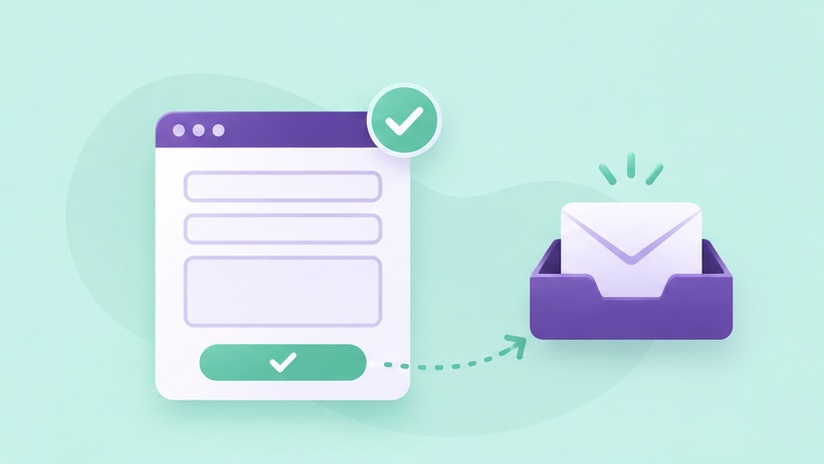
Write down how the site sends form notifications and who checks the inbox. If the form depends on an external email or CRM integration, include its owner. A site may appear healthy while requests silently fail, so the person maintaining the site needs a way to verify delivery.
Confirm backups cover files and the database
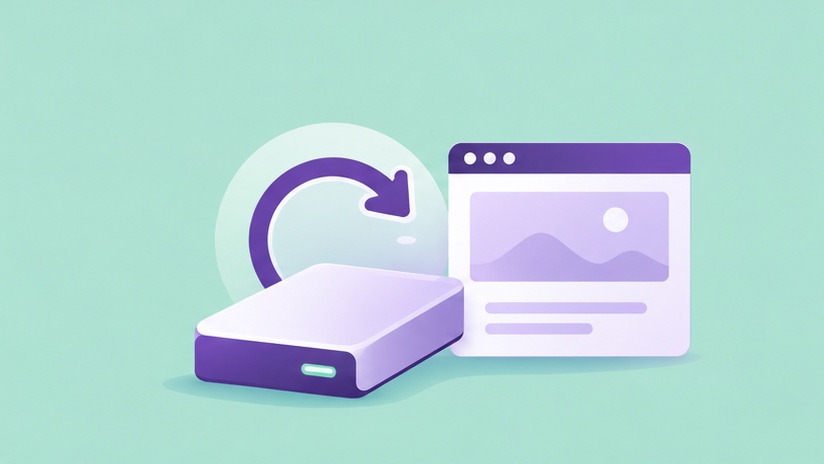
A WordPress site depends on files and database content. A backup that covers only one may be insufficient for a full recovery. Identify how often each is captured, where copies are stored, and how far back you can restore. Choose frequency based on how much content or inquiry data the business can afford to lose.
Watch Learn WordPress explain how to back up your site, then check your host's restore process. Test a restore away from production when feasible. An ecommerce or booking site deserves extra care because rolling back the database could affect orders or appointments received after the restore point.
Plan updates around the work the site does
Review core, theme, and plugin changes regularly. Check whether a major update affects your page builder, custom code, or important integrations. For higher-risk changes, test a representative copy first. Make sure a recovery point exists before making a production change and know who can reverse it if needed.
After updates, check the homepage, a service page, a form, and the editor workflow your staff uses. On a booking site, run an approved test through confirmation. Record what was updated and what was verified. WordPress also provides Site Health guidance for reviewing its status and configuration messages.
Include business checks in the recurring routine
Open the site as a visitor on a phone. Check that the navigation works, the contact details are current, and a test inquiry reaches the right destination. Verify that important images and links load. Look for broken pages after plugin changes, design edits, or moving content. The service page SEO checklist explains how to test the contact path from a public page.
Set a review cadence that reflects how the business uses the site. A mostly static brochure site can have a different routine from a website that takes orders every day. Keep a maintenance log with the date, owner, issue, and result. This gives the next person enough context to diagnose recurring problems.
Make a small recurring maintenance log
For each review, record the date, site owner, backup status, updates reviewed, and the customer flows tested. Note the reason for delaying a major update and give the follow-up an owner. A log should tell a teammate what happened even if they were out when it happened.
Write a separate note for exceptions. If an inquiry failed, capture the page, time, expected destination, and whether the form stored a copy. This makes it easier to distinguish a site issue from an email routing issue. Once repaired, repeat the same test and record the result.
Frequently asked questions
Are automatic updates enough?
They can reduce manual work. You still need reliable backups, visibility into failures, and checks for the pages and workflows customers use.
Can I maintain WordPress without a developer?
Many owners can handle basic checks and routine edits. Make sure someone can handle recovery and compatibility issues when the site depends on custom features.
Get help with your WordPress website
Talk through your current site, the edits your team needs, and the work you want to prioritize.
Explore WordPress Development